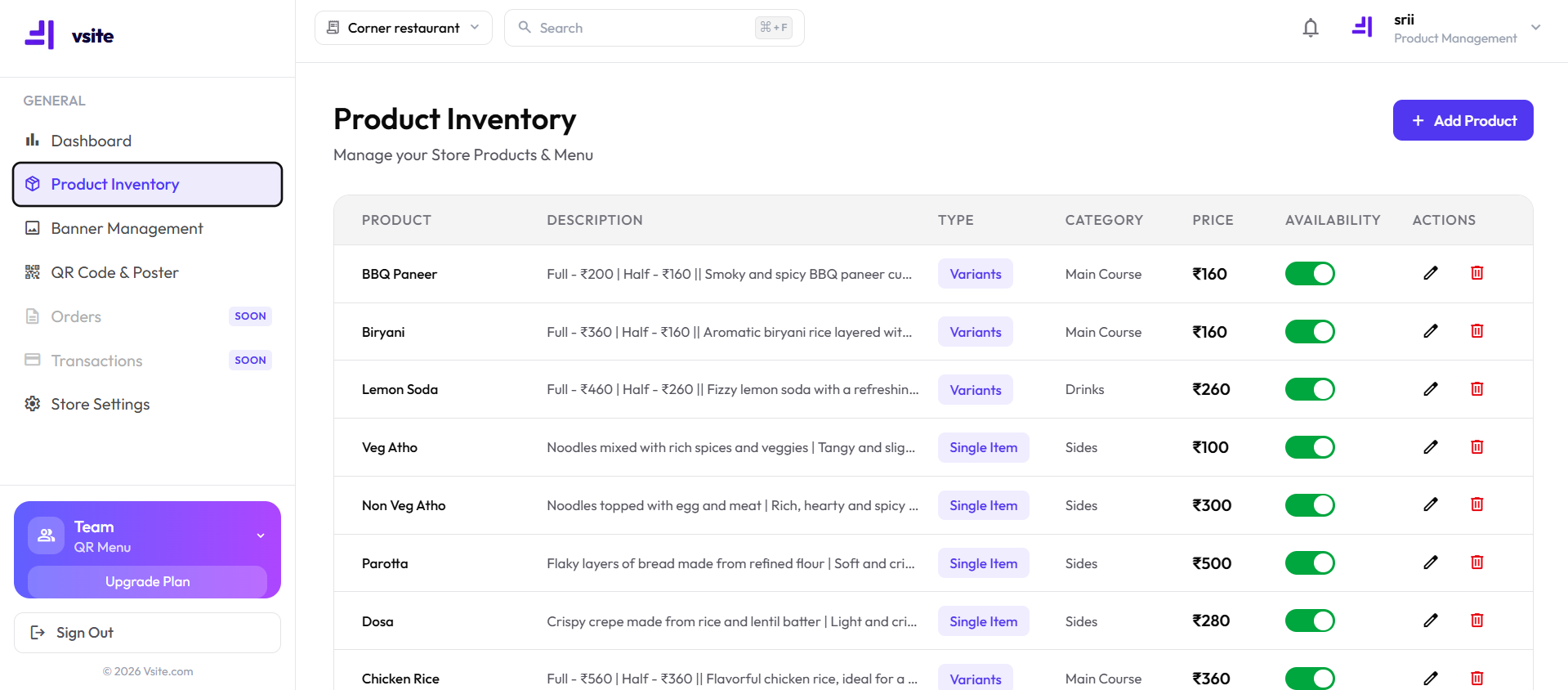
Your Product Inventory is where you add, edit, and manage every item on your digital menu. Any change you make here goes live on your customer-facing menu instantly — no reprint, no waiting.
How to Add a New Menu Item
- Go to Manage → Product Inventory
- Tap "Add Item" in the top right
- Enter the item name (English + Tamil optional)
- Set the price in ₹
- Choose or create a category (e.g. Starters, Mains, Beverages)
- Tap Save — vsite auto-matches a food photo
- Your item is live on the menu immediately
How to Edit or Delete an Item
To edit any item, tap its name in the Product Inventory list. You can change the name, price, category, description, or photo. To delete, tap the three-dot menu on the item card and select "Delete". Deleted items are removed from the customer menu immediately.
Marking Items Out of Stock
When you run out of an item mid-service, go to Product Inventory and toggle the "Available" switch off. The item shows a "Sold Out" label on your customer menu instantly — customers won't be able to order it. Toggle it back on when it's back in stock.
Mark items out of stock before your lunch rush to prevent order rejections and unhappy customers. It takes 3 seconds and saves you from awkward "sorry, not available" conversations.
Organising with Categories
Categories group your items on the customer-facing menu. Common categories: Starters, Soups, Mains, Breads, Beverages, Desserts, Specials. You can reorder categories by drag-and-drop. Put your highest-margin items in the first category — it's the first thing customers see.
AI Food Photos
vsite matches a professional-quality food photo to every item you add. You can replace it with your own photo at any time by tapping the photo on the item edit screen.
Frequently Asked Questions
How do I add a new item to my vsite menu?
Go to Product Inventory → tap "Add Item" → enter the item name, price, and category. vsite automatically matches a food photo to the item. The item goes live on your menu instantly.
How do I mark an item as out of stock on vsite?
Open Product Inventory, find the item, and toggle the "Available" switch off. The item shows as sold out on the customer-facing menu immediately. Toggle it back on when it's available again.
Can I add Tamil names for my menu items?
Yes. Type the dish name in Tamil, English or both, and it shows on the menu in Tamil fonts. The AI also reads Tamil text from a photo of your paper menu. There is no language switch and no automatic translation.